Showing posts with label 3. Show all posts
Showing posts with label 3. Show all posts
Wednesday, February 18, 2015
Arrays in C Part 3
Read: Arrays in C - Part 2
So far I told you about some basic topics of arrays in C like initialization of arrays, accepting elements in array, printing the values from an array and so on. Today I will tell you about one advance use of arrays like passing the values of arrays to a function. It can be done in two ways, call by value and call by reference.
Output
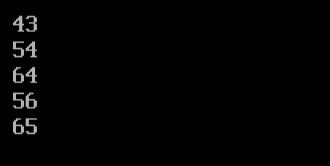
Explanation
Explanation
Which one is better?
As you can see both the approaches are giving the same results. However I need to do little modifications in each program. Remember that the second program is better than the first one. Because it is using the pointer. Usage of pointer decreases the execution time of program. This is the reason people use to prefer pointers while using arrays in C.
So far I told you about some basic topics of arrays in C like initialization of arrays, accepting elements in array, printing the values from an array and so on. Today I will tell you about one advance use of arrays like passing the values of arrays to a function. It can be done in two ways, call by value and call by reference.
Passing Array Elements to a Function
Call by Value
Lets straight away starts with one program.#include<stdio.h>
void printarr(int);
int main()
{
int x;
int nums[]={43,54,64,56,65};
for(x=0;x<5;x++)
printarr(nums[x]);
return 0;
}
void printarr(int n)
{
printf ("
%d",n) ;
}
Output
- I have declared an integer array nums and inserted 10 elements into it.
- After that I have started one for loop. Inside the loop I have written one statement i.e. printarr(nums[x]). It will call the function printarr().
- At first the value of x is 0. Then the first element of nums array will be passed to the printarr() function.
- That value will be received in the formal argument n of the function. After that it will display the element on the screen with printf() function.
- Now the control again moves to the main() function. The printarr() function is again called and second element of array nums is passed to it. This process will continue until the loop stops executing. And at last the program will stop.
Call by Reference
Lets understand it with one program.#include<stdio.h>
void printarr(int*);
int main()
{
int x;
int nums[]={43,54,64,56,65};
for(x=0;x<5;x++)
printarr(&nums[x]);
return 0;
}
void printarr(int *n)
{
printf("
%d",*n) ;
}
Explanation
- The code of the program is almost similar to the previous one. But in this case we are passing the address of array elements to the printarr() function.
- Note that I have passed the address of array elements with the help of address of operator i.e. &.
- The address of the array element is received by an integer pointer variable n.
- And in last I have printed the value by using printf() function. The output will be same as previous program.
Which one is better?
As you can see both the approaches are giving the same results. However I need to do little modifications in each program. Remember that the second program is better than the first one. Because it is using the pointer. Usage of pointer decreases the execution time of program. This is the reason people use to prefer pointers while using arrays in C.

Saturday, February 14, 2015
Get CyberGhost Premium Free for 3 Months
CyberGhost Premium VPN FREE for 3 Months
Hello guys, well I just came across a great offer by CyberGhost 5, they are giving away 3 Months Premium membership for FREE. The deal lasts for just 13 days or till the number of accounts gets over. So hurry up and Get a VPN for yourself absolutely FREE. |
| Exclusive: Get CyberGhost Premium VPN FREE for 3 Months |
Get CyberGhost Premium VPN FREE for 3 Months With this special edition of ~CyberGhost 5 you will be getting all the premium features for 3 months absolutely free. The edition includes, unlimited traffic volume, bandwidth, access to all premium servers, full premium support and a special additional protection for mobile devices.

How to Activate the Key
To get your account activated follow the given steps:
1. Firstly you need a key, Click HERE to get your VPN KEY.
2. You will be getting a confirmation mail in your inbox, just follow the link in the mail.
3. The link will take you to your key, now to use your key all you have to do is just Download CyberGhost 5
4. Open up CyberGhost and click on "Activate key" and enter the key you got.
5. Voila!! You are done, your CyberGhost 5 is activated with all the premium features.
Features of CyberGhost 5
Overview:
- Fully Encrypted Internet
- Unlimited Bandwidth
- Live Server Update
- No Waiting Times
- Anti Fingerprinting System

- Well to be honest if you want to surf anonymously then CyberGhost VPN (Virtual Private Network) must be your first choice, they completely hide your IP and wont even keep their user logs. So this way our identity is also a mystery to them.
- One more top class offer they provide is, that you can open up any restricted or blocked website which may be blocked in your country due to security or political issues.
- The best feature of all is that it is safe and installation is very easy and takes no time, moreover it supports all platforms.
Friday, February 13, 2015
Free 3 Page Resume PSD Template

Type : PSD
Category : Print Templates
License : Free
Author : Behance
Download
Wednesday, February 11, 2015
C program to print fibonacci series i e 0 1 1 2 3 5 8

#include<stdio.h>
#include<conio.h>
void main()
{
int first=0,second=1,third,i,n;
clrscr(); //to clear the screen
printf("Enter how many elements?");
scanf("%d",&n);
printf("
%d %d",first,second);
for(i=2;i<n;++i)
{
third=first+second;
printf(" %d",third);
first=second;
second=third;
}
getch(); //to stop the screen
}
Thursday, February 5, 2015
AS3 Countdown Timer Creating a Simple Countdown Timer in Flash Using ActionScript 3
In this tutorial, well learn how to create a very simple AS3 countdown timer in Flash.
Step 1
Create a new Flash ActionScript 3 document. Select the text tool once your document opens up.
Step 2
Go to the Properties Inspector and choose the following options:
Step 3
Then click on the stage to add the text field. Make sure that the text field is big enough for whatever font size you chose.
Step 4
Make sure that your text field is selected, then go back to the Properties Inspector and give it an instance name. Lets name this timer_txt.

Step 5
Create a new layer for the actions, then select the first keyframe of this new layer, and open up the Actions panel.
Step 6
In the script pane of the Actions panel, create a number variable. Lets initialize it with a value of 10.
Step 7
Assign the nCount variable to the text property of the timer_txt text field.
Step 8
Test your movie. You should see the number displayed in the text field.
Step 9
Go back to the code, and this time, create a Timer object with a delay of 1000. And for the repeatCount parameter, lets pass the nCount variable. The delay is the first value we pass to the Timer() constructor. The repeatCount is the second value that we pass.
Step 10
Now lets create an event listener function for the TimerEvent.TIMER event. This event gets dispatched at a rate that depends on the delay that was specified. Since we specified a delay of 1000 milliseconds, then this means that the event listener function will get called every 1 second. Lets name this event listener function as countdown.
Step 11
In the event listener function, we want to subtract nCount by 1 so that each time the function gets called, nCount will decrease. And then well display the new value in the timer_txt text field again so that it gets updated.
Step 12
Lastly, lets make sure that we start the timer using the start() method of the Timer class. If we dont start the timer, then we wont see anything happen.
Step 13
Test the movie. You should now have a working countdown timer.
Read more »
Step 1
Create a new Flash ActionScript 3 document. Select the text tool once your document opens up.
Step 2
Go to the Properties Inspector and choose the following options:
- Text field type: Classic - Dynamic Text

- For the font family, you can choose either _sans, _serif, or _typewriter

- Anti-alias: Use device fonts

- For the text color, make sure that its different from the background color of your stage
- You can choose whatever font size that you want
Step 3
Then click on the stage to add the text field. Make sure that the text field is big enough for whatever font size you chose.
Step 4
Make sure that your text field is selected, then go back to the Properties Inspector and give it an instance name. Lets name this timer_txt.
Step 5
Create a new layer for the actions, then select the first keyframe of this new layer, and open up the Actions panel.
Step 6
In the script pane of the Actions panel, create a number variable. Lets initialize it with a value of 10.
var nCount:Number = 10;Step 7
Assign the nCount variable to the text property of the timer_txt text field.
var nCount:Number = 10;

timer_txt.text = nCount.toString();Step 8
Test your movie. You should see the number displayed in the text field.
Step 9
Go back to the code, and this time, create a Timer object with a delay of 1000. And for the repeatCount parameter, lets pass the nCount variable. The delay is the first value we pass to the Timer() constructor. The repeatCount is the second value that we pass.
var nCount:Number = 10;
var myTimer:Timer = new Timer(1000, nCount);

timer_txt.text = nCount.toString();Step 10
Now lets create an event listener function for the TimerEvent.TIMER event. This event gets dispatched at a rate that depends on the delay that was specified. Since we specified a delay of 1000 milliseconds, then this means that the event listener function will get called every 1 second. Lets name this event listener function as countdown.
var nCount:Number = 10;
var myTimer:Timer = new Timer(1000, nCount);

timer_txt.text = nCount.toString();

myTimer.addEventListener(TimerEvent.TIMER, countdown);

function countdown(e:TimerEvent):void
{

}
Step 11
In the event listener function, we want to subtract nCount by 1 so that each time the function gets called, nCount will decrease. And then well display the new value in the timer_txt text field again so that it gets updated.
var nCount:Number = 10;
var myTimer:Timer = new Timer(1000, nCount);

timer_txt.text = nCount.toString();

myTimer.addEventListener(TimerEvent.TIMER, countdown);

function countdown(e:TimerEvent):void
{
	nCount--;
	timer_txt.text = nCount.toString();
}Step 12
Lastly, lets make sure that we start the timer using the start() method of the Timer class. If we dont start the timer, then we wont see anything happen.
var nCount:Number = 10;
var myTimer:Timer = new Timer(1000, nCount);

timer_txt.text = nCount.toString();
myTimer.start();

myTimer.addEventListener(TimerEvent.TIMER, countdown);

function countdown(e:TimerEvent):void
{
	nCount--;
	timer_txt.text = nCount.toString();
}
Step 13
Test the movie. You should now have a working countdown timer.
Wednesday, February 4, 2015
Properties and Methods in ActionScript 3
In the previous lesson, we learned about what classes and objects are. In this lesson, well be learning about properties and methods. Properties and methods are things that classes have. For example, here are some of the properties and methods available to the MovieClip class:
These are just a few of the properties and methods that belong to the MovieClip class, and by extension, these properties and methods are available to all MovieClip objects.
To begin our understanding of properties and methods, its important to think of objects in programming as being similar to real objects - things around us that we can see and touch, like a teacup, a book, a shoe or a ball. These objects have characteristics - small, large, colorful, etc... For example, a teacup can be small, a dress can be colorful, a pillow can be soft. These objects can also do things - a ball can bounce, a wheel can turn, and a phone can ring. So real objects have characteristics, and real objects can do things.
In programming, even though we cant actually touch these objects, they have characteristics and they can do things as well. These characteristics of programming objects are referred to as properties, while things that objects can do are referred to as methods.
Lets go back to the MovieClip class list of properties and methods posted above. In the left column of the list above, we see that MovieClip objects have the width and height properties. These properties define how wide and how high a specific MovieClip object is. The width and the height of a MovieClip object can be seen as characteristics, because they describe the appearance of a MovieClip. To use an analogy, properties are like adjectives - they describe objects.
In the right column of the list above, we find some of the methods of the MovieClip class - play() and stop(). Methods are basically the tasks that objects can perform. For MovieClip objects, when you talk about the play() method, this refers to the MovieClip playing the animation in its timeline. The stop() method refers to when the MovieClip stops the animation. To use an analogy, if properties are like adjectives, then methods are like verbs - they refer to the actions that objects can do. Youll also notice that methods end in parentheses. Properties do not.
How do we access the properties and methods of an object?
To access the properties and methods of an object, you type in the name of the object, followed by a dot, followed by the property or method that you want to access. This is called dot syntax, because we use dots.
Lets say you have a MovieClip object named square_mc. To access the width property, you would type this:
In some instances, you might just want to retrieve the value of a specific property. In the previous example, we accessed the width property and assigned a new value to it. In this next example, well just retrieve the value of the width property, and then compare it to another value. We wont be changing the value whatsoever:
So in some instances, we might want access a property and assign a new value to it. In other instances, we might just want to retrieve a propertys current value.
NOTE: Not all properties can be assigned values through code. Properties that cannot be assigned values through code are called read-only properties. You can only check for their current values, NOT assign them with new ones. For example, there is a property of the MovieClip class known as the currentFrame property. The currentFrame property of the MovieClip class tells you the current frame of the MovieClip object that the playhead is on. You wont be able to assign a value to this property. The value that its going to have, is always just dependent on the movement of the playhead within the MovieClip objects timeline.
In this next example, were accessing the stop() method. Here, we are telling the square_mc MovieClip to stop playing:
In some cases, some methods need some extra information. You can pass this extra information by placing it inside the parentheses of the method. For example, the MovieClip class has a method called gotoAndStop(). This method tells the MovieClip to move to a specific frame within its timeline and then stop right there. So when you try to use the gotoAndStop() method, you dont just call the method, you have to give it some extra information. For the gotoAndStop() method, you also have to say which frame number to go to, because you could go to frame 5 or frame 12 or whatever other frame you want. How is Flash going to know unless you specify which frame to go to? So you need to pass that information by putting it inside the parentheses of the method. So lets say we wanted the square_mc MovieClip to go to frame no. 2 of its timeline and stop there, then we would type:
And those are just a few examples of properties and methods in ActionScript 3. To recap:
Read more »
| MovieClip Class | |
| Properties | Methods |
| width height | play() stop() |
These are just a few of the properties and methods that belong to the MovieClip class, and by extension, these properties and methods are available to all MovieClip objects.
To begin our understanding of properties and methods, its important to think of objects in programming as being similar to real objects - things around us that we can see and touch, like a teacup, a book, a shoe or a ball. These objects have characteristics - small, large, colorful, etc... For example, a teacup can be small, a dress can be colorful, a pillow can be soft. These objects can also do things - a ball can bounce, a wheel can turn, and a phone can ring. So real objects have characteristics, and real objects can do things.
In programming, even though we cant actually touch these objects, they have characteristics and they can do things as well. These characteristics of programming objects are referred to as properties, while things that objects can do are referred to as methods.
Lets go back to the MovieClip class list of properties and methods posted above. In the left column of the list above, we see that MovieClip objects have the width and height properties. These properties define how wide and how high a specific MovieClip object is. The width and the height of a MovieClip object can be seen as characteristics, because they describe the appearance of a MovieClip. To use an analogy, properties are like adjectives - they describe objects.
In the right column of the list above, we find some of the methods of the MovieClip class - play() and stop(). Methods are basically the tasks that objects can perform. For MovieClip objects, when you talk about the play() method, this refers to the MovieClip playing the animation in its timeline. The stop() method refers to when the MovieClip stops the animation. To use an analogy, if properties are like adjectives, then methods are like verbs - they refer to the actions that objects can do. Youll also notice that methods end in parentheses. Properties do not.
How do we access the properties and methods of an object?
To access the properties and methods of an object, you type in the name of the object, followed by a dot, followed by the property or method that you want to access. This is called dot syntax, because we use dots.
Lets say you have a MovieClip object named square_mc. To access the width property, you would type this:
square_mc.width = 200;
Here, we are accessing the width of the square_mc MovieClip, and we are assigning to it a value of 200. This will make the square_mc object 200 pixels wide.In some instances, you might just want to retrieve the value of a specific property. In the previous example, we accessed the width property and assigned a new value to it. In this next example, well just retrieve the value of the width property, and then compare it to another value. We wont be changing the value whatsoever:
if(square_mc.width >= 200)
{
// do something
}
Here, we have an if statement where Flash is just going to retrieve whatever the current value of the width property of square_mc is, and then compare if its greater than or equal to 200. So in some instances, we might want access a property and assign a new value to it. In other instances, we might just want to retrieve a propertys current value.
NOTE: Not all properties can be assigned values through code. Properties that cannot be assigned values through code are called read-only properties. You can only check for their current values, NOT assign them with new ones. For example, there is a property of the MovieClip class known as the currentFrame property. The currentFrame property of the MovieClip class tells you the current frame of the MovieClip object that the playhead is on. You wont be able to assign a value to this property. The value that its going to have, is always just dependent on the movement of the playhead within the MovieClip objects timeline.
In this next example, were accessing the stop() method. Here, we are telling the square_mc MovieClip to stop playing:
square_mc.stop();
Provided that the square_mc MovieClip has some animation in its timeline, then this line will cause that animation to stop. In some cases, some methods need some extra information. You can pass this extra information by placing it inside the parentheses of the method. For example, the MovieClip class has a method called gotoAndStop(). This method tells the MovieClip to move to a specific frame within its timeline and then stop right there. So when you try to use the gotoAndStop() method, you dont just call the method, you have to give it some extra information. For the gotoAndStop() method, you also have to say which frame number to go to, because you could go to frame 5 or frame 12 or whatever other frame you want. How is Flash going to know unless you specify which frame to go to? So you need to pass that information by putting it inside the parentheses of the method. So lets say we wanted the square_mc MovieClip to go to frame no. 2 of its timeline and stop there, then we would type:
square_mc.gotoAndStop(2);
This will instruct the MovieClip to go to the 2nd frame in its timeline and stop.And those are just a few examples of properties and methods in ActionScript 3. To recap:
- properties are like adjectives - they describe the object
- methods are like verbs - they are the actions that an object can do
- methods end in parentheses, properties do not
- you can access the properties and methods of an object using dot syntax
- some properties are read-only - you cannot assign values to them using code
- some methods require added information, which you pass to the method by typing the needed information inside the methods parentheses
Subscribe to:
Posts (Atom)