Showing posts with label use. Show all posts
Showing posts with label use. Show all posts
Thursday, February 26, 2015
Lessons Learned from Students use of an Online Learning Environment
Link to article (by N. Beasley)
"This article highlights the lessons learned from recent research into the use made of an online learning environment by workplace-based students...
(Lessons Learned) The students, being workplace-based, often found that they had distinct blocks of free time to spend studying and said that if the materials were structured into timed units, more effective workplace study could be facilitated. Although the idea of tightly timed units is counter to the idea of self-paced, needs-based learning, on a practical level it may be beneficial to students trying to fit study into their working days. Although the students appreciated the activities provided, they stated that they would have preferred more of them, and more interactivity within them.
"This article highlights the lessons learned from recent research into the use made of an online learning environment by workplace-based students...
(Lessons Learned) The students, being workplace-based, often found that they had distinct blocks of free time to spend studying and said that if the materials were structured into timed units, more effective workplace study could be facilitated. Although the idea of tightly timed units is counter to the idea of self-paced, needs-based learning, on a practical level it may be beneficial to students trying to fit study into their working days. Although the students appreciated the activities provided, they stated that they would have preferred more of them, and more interactivity within them.
The evaluation indicated that if more use were made of visual, interactive elements, which would not be possible in the printed version, students would be more likely to use the web for other parts of the course as well, making more use of hyperlinks and the non-linear structure. A more explicit integration of activities and content would ensure that students studying using the activities view felt reassured that they were covering all the desired content. It is also key to provide students with explicit instructions on how to study effectively using the online learning environment and the activities within it."
Also, students liked the flexibility of the printed materials, which enabled them to study anywhere, and the ability to annotate the printed materials. Interesting article! There are several interesting lessons to be learned here .

Tuesday, February 24, 2015
Use Multiple Internet Connections Simultaneously
Got multiple connections? Wanna join multiple internet connections on single computer? Check out my tutorial about how to utilize multiple internet connections at once to get faster bandwidth and speed. In this tutorial i will help you about how to mix up your internet connections at single pc that will add up the bandwidth of all the internet connections and give you an output of the sum of all the bandwidths. To increase your internet speed by using multiple internet connections, Follow the simple steps below.
Try this and get amazing combined internet speed. Dont forget to tell your friends about this post. Share it
NOTE: You can join all type of internet connections at once like 3G,4G, WLAN or Ethernet internet connections.
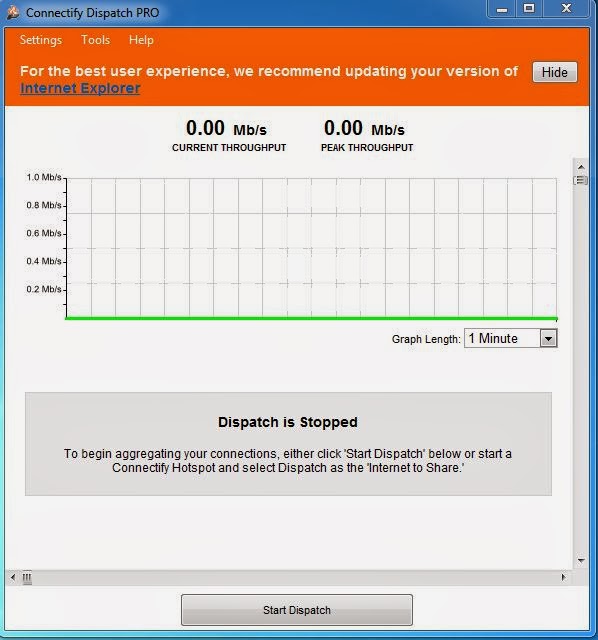 |
| Connectify Dispatch Pro |
- First of all, you need to be using Windows 7 (SP1) or above, then download a program named “Connectify Dispatch Pro”.
- You can download this program by Clicking the link Below.
- Click Here to Download “Connectify Dispatch Pro”.
- Install the program, and then Run this program.
- Now connect all your internet connections (3G,4G,WLAN or Ethernet) to your system.
- Once you connected your internet connections then Click on on ‘Start Dispatch’ button.
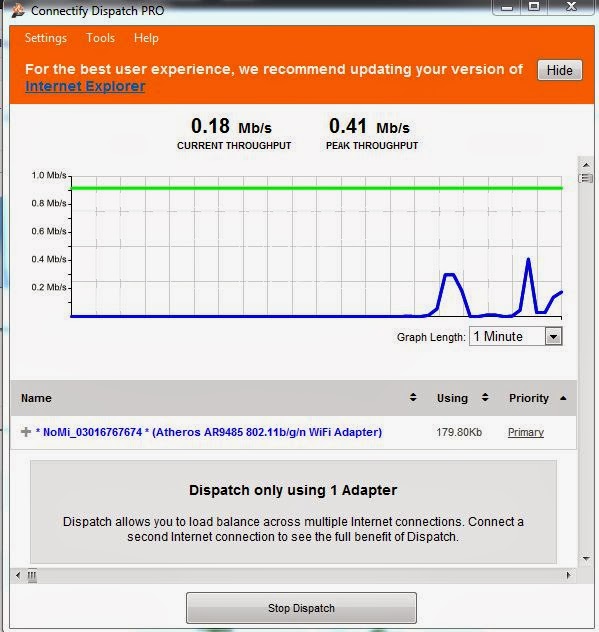 |
| When Single Adapter Connected |
This will integrate all you internet connections and give you the output as the sum of all the internet bandwidth. You can see the following screenshot that i taken by myself.
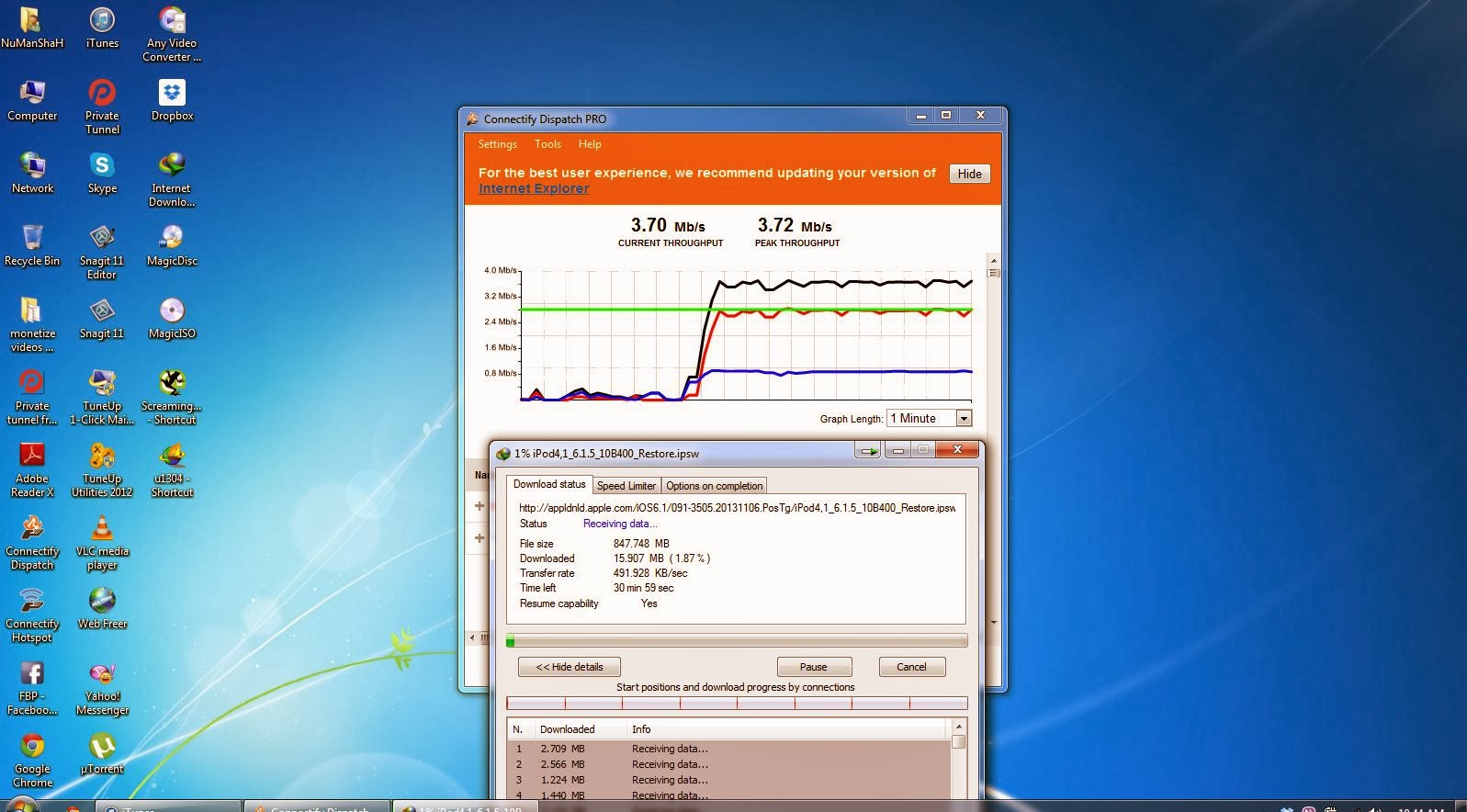 |
| When two adapters start working together |
When you connect two internet connection and Dispatch them then you can see the third Black output line as shown below.
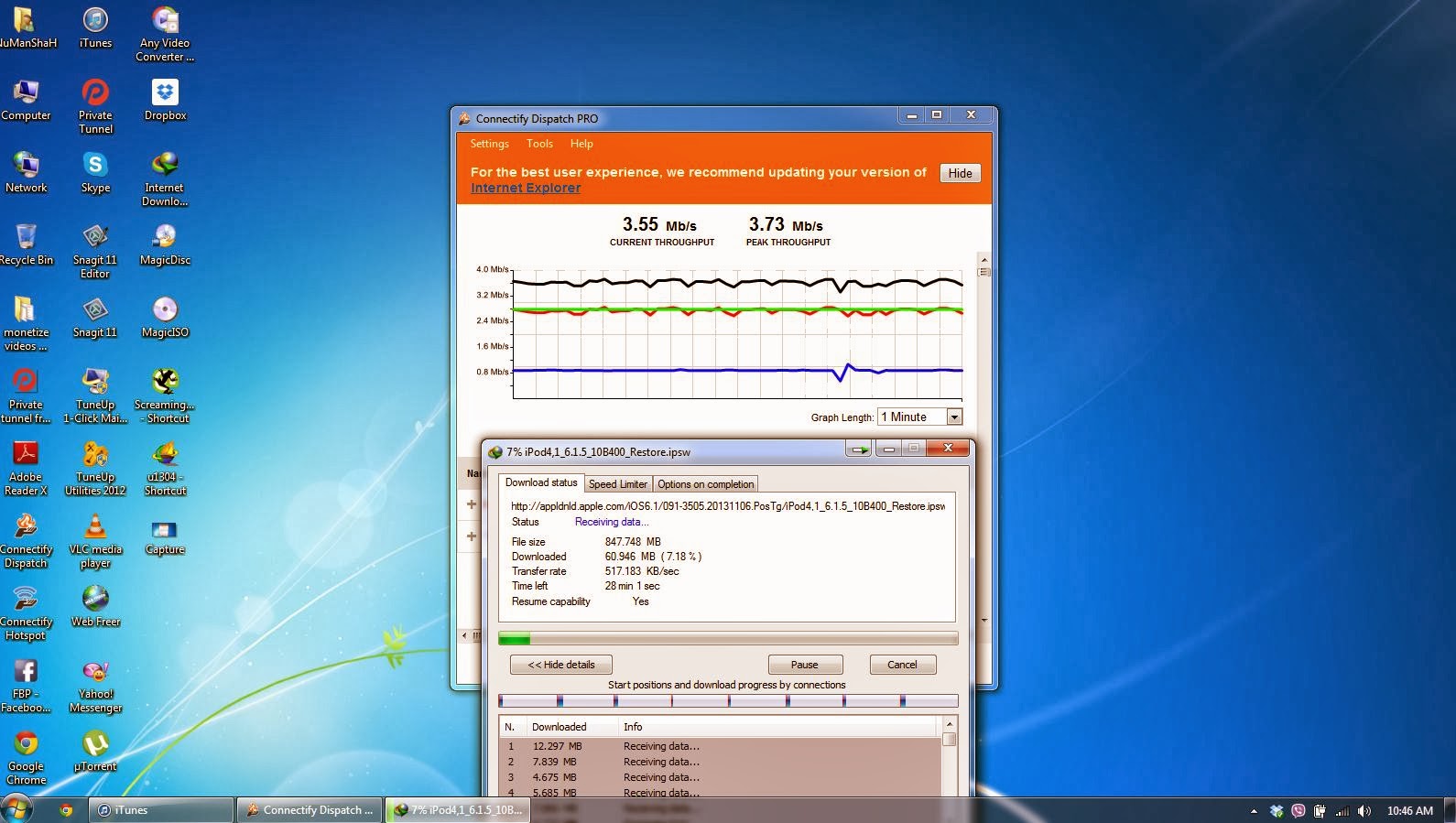 |
| Output bandwidth |
Try this and get amazing combined internet speed. Dont forget to tell your friends about this post. Share it
Wednesday, February 18, 2015
Some Unknown Windows Tricks that I Mostly Use to Make my Work Easier

In this post I am listing out some tricks which I generally use while working on the computer to make my work easier. I know that these tricks are very common among people who have a good knowledge of computer. But some people who have newly purchased a computer or those who use computer occasionally are not aware of these tricks. Just go through the tricks given below and let me know your experience.
Also Read: My Mouse is not Working: How to Use Mouse With the Help of Keyboard?
Also Read: Top 8 Free Alternatives to Paid Softwares
List of Some Unknown Windows Tricks
1. What to do if your computer is hanged?
Almost every person faces this problem while working on computer. Even I also face this problem many times. Ok! I just want to ask you a question. What you do when your computer is hanged? Generally the people who don’t have so much knowledge, press CPU restart button to solve this problem. But this Is not a good practice. By doing this you can lost your unsaved data. One of the best way is given below to solve this problem.
1. Press Ctrl+Alt+Delete, a new window will open.
2. Go to Processes tab, select explorer.exe and than click on End Process.
3. Now go to Applications tab, click on New Task.
4. A new window will open, here write explorer.exe in the text box and than click OK.
5. After that your computer will start working as usual.
Note: You can also use Processes tab to close any application which is not responding. For this just follow step 1 and 2.
Note: You can also use Processes tab to close any application which is not responding. For this just follow step 1 and 2.
2. Clear my recent documents list without any software
There are so many softwares (like CCleaner) available on the internet to do this task. But there is a trick to clear recent documents list without any software.
1. First of all right click on taskbar, than on Properties.
2. Now click on Start Menu tab, than on Customize.
3. After that click on Advanced tab and than on Clear List.
4. Now check your my recent documents list, it will be empty.
Note: This process works only in windows xp not in windows 7 and 8.
Note: This process works only in windows xp not in windows 7 and 8.
Also Read: The 5 Best Softwares for Remote Assistance
Also Read: Google Gravity: How to Hack Google Homepage (Funny Trick)
Also Read: Google Gravity: How to Hack Google Homepage (Funny Trick)
3. Start any application automatically on windows startup
If you want to start any application on windows startup than just drag and drop the icon of the application that you want to Start>All Programs>Startup.
4. Delete files without going to recycle bin
Normally when you delete a file it goes to recycle bin and than you have to do recycle bin empty to delete it completely. But you can delete files directly without sending them to recycle bin.
1. Just select the files that you want to delete.
2. Now press Shift+Delete, a confirmation box will open, here click on OK.
Note: By normal deleting you can restore files again. But deleting files by the above trick you can not restore files.
Note: By normal deleting you can restore files again. But deleting files by the above trick you can not restore files.
Subscribe to:
Posts (Atom)